How to make a price list for your salon, café or studio
A good price list answers the question before it's asked, and a confusing one sends people to your inbox. Whether it hangs on the wall, sits on the counter or goes on Instagram, the same few rules make it easy to read.
Group before you design
Write everything down first, then group it the way customers think: haircuts, colour, treatments; or coffee, tea, food. Three to six groups is plenty. Put the most popular things first in each group, not the cheapest.
Line up the prices
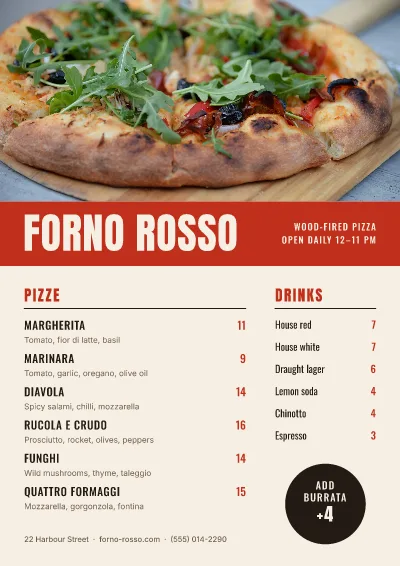
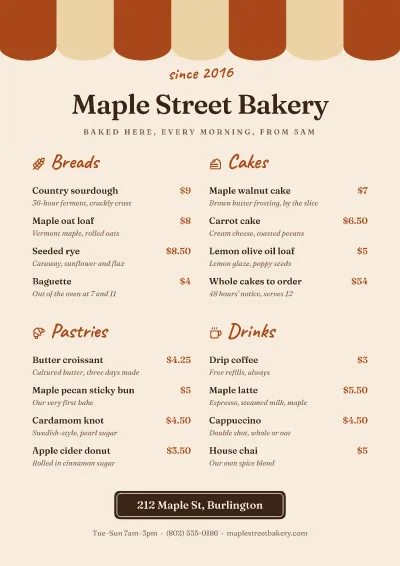
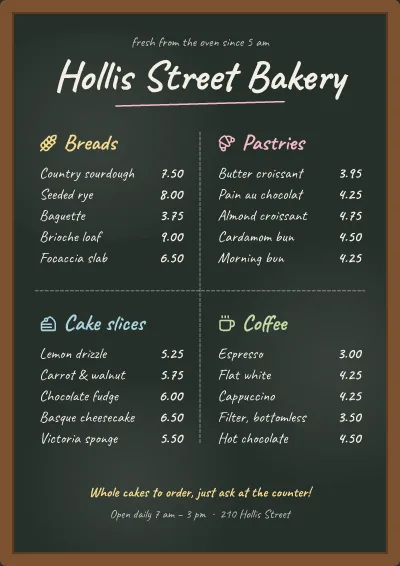
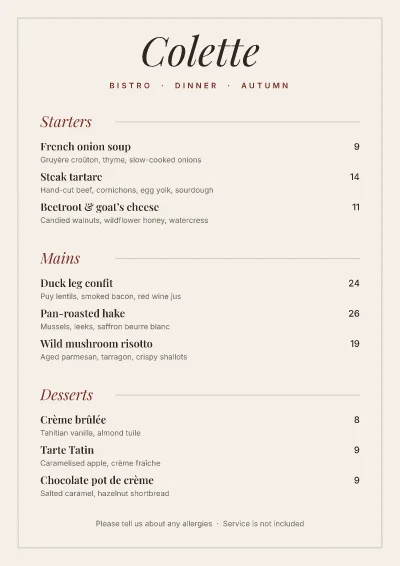
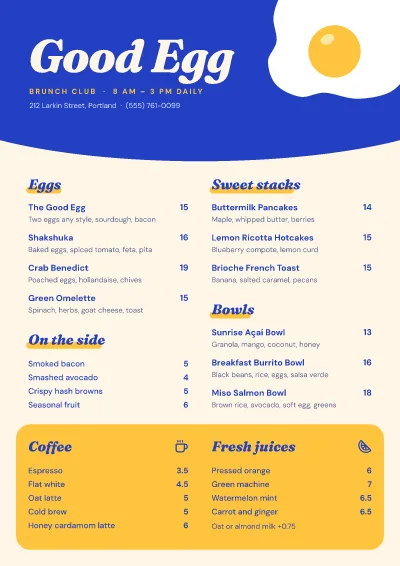
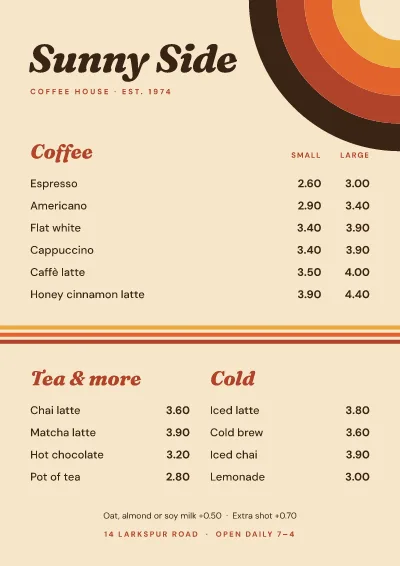
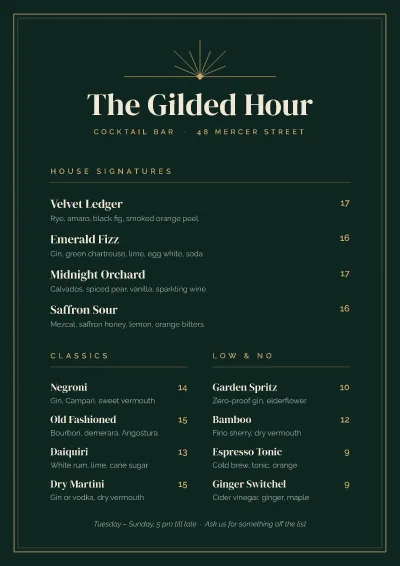
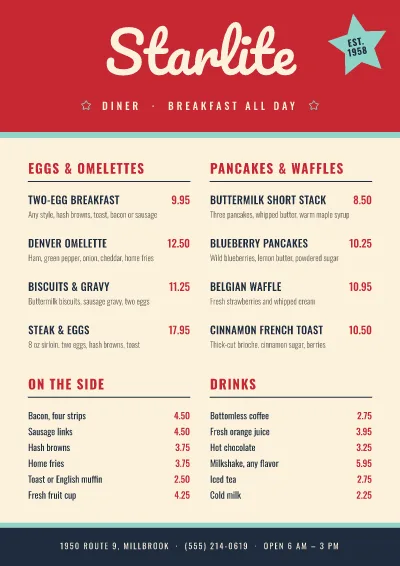
People scan for two things: what it is and what it costs. Keep the name on the left and the price on the right, every price lined up in one column. Leave out currency symbols on every line if one heading says the currency, so the column stays clean.
For a few services, a simple list with prices on the right is enough. For more, or when each item has several prices (short, medium and long hair; small and large), a table is clearer: one column per size, one row per service.
Make a table in a minute
- Open the table maker and press Make a table.
- Press Cells and type your services and prices. Add a column for each size or option.
- Turn on the header row for the column names, add stripes so each row is easy to follow, and set the alignment.
- Add your name, a heading and a line about booking above the table.
Make it yours
Use your brand colour for the header row and the headings, and one font for everything except perhaps the shop name. A photo of your work at the top makes a list feel like an invitation rather than a bill.
Sizes to make
- For the wall or the counter: A4 or Letter. Download a PDF for the printer.
- For Instagram: a portrait post (1080 × 1350) or a story. Press Resize to make both from one design.
Keep it current
An out-of-date price list costs you trust. Because your design stays in Pozzly, changing a price means opening it, changing the number and downloading again.
Start from one of the price list and menu templates below.